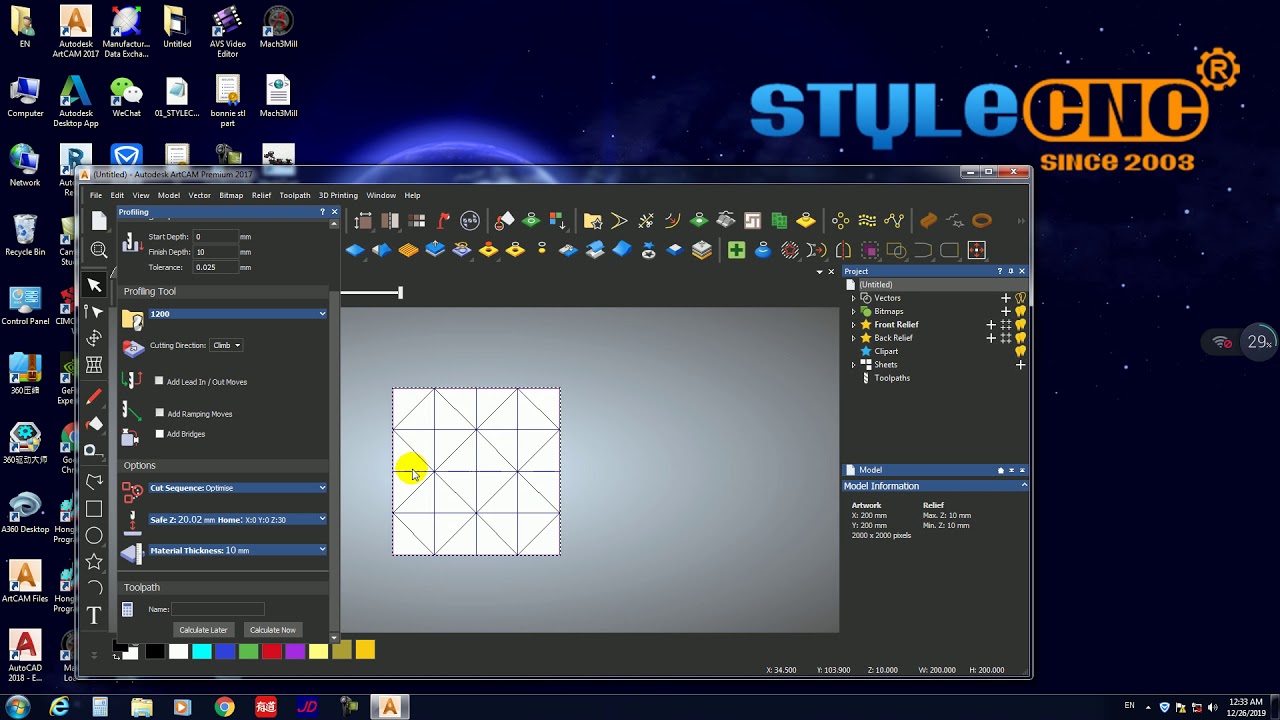
彌合設(shè)計(jì)與制造之間鴻溝的關(guān)鍵步驟之一是生成 G 代碼文件。對(duì)于數(shù)控機(jī)床用戶而言,ArtCAM 是一款功能強(qiáng)大的工具,它能夠輕松創(chuàng)建復(fù)雜的圖紙并將其轉(zhuǎn)換為可加工的代碼。無(wú)論是新手還是專(zhuān)家用戶,都能輕松生成 G 代碼。 數(shù)控機(jī)床 按照本指南操作,該指南演示了該過(guò)程。我們可以一起分析每個(gè)階段,并幫助您為您的工作制作理想的文件。
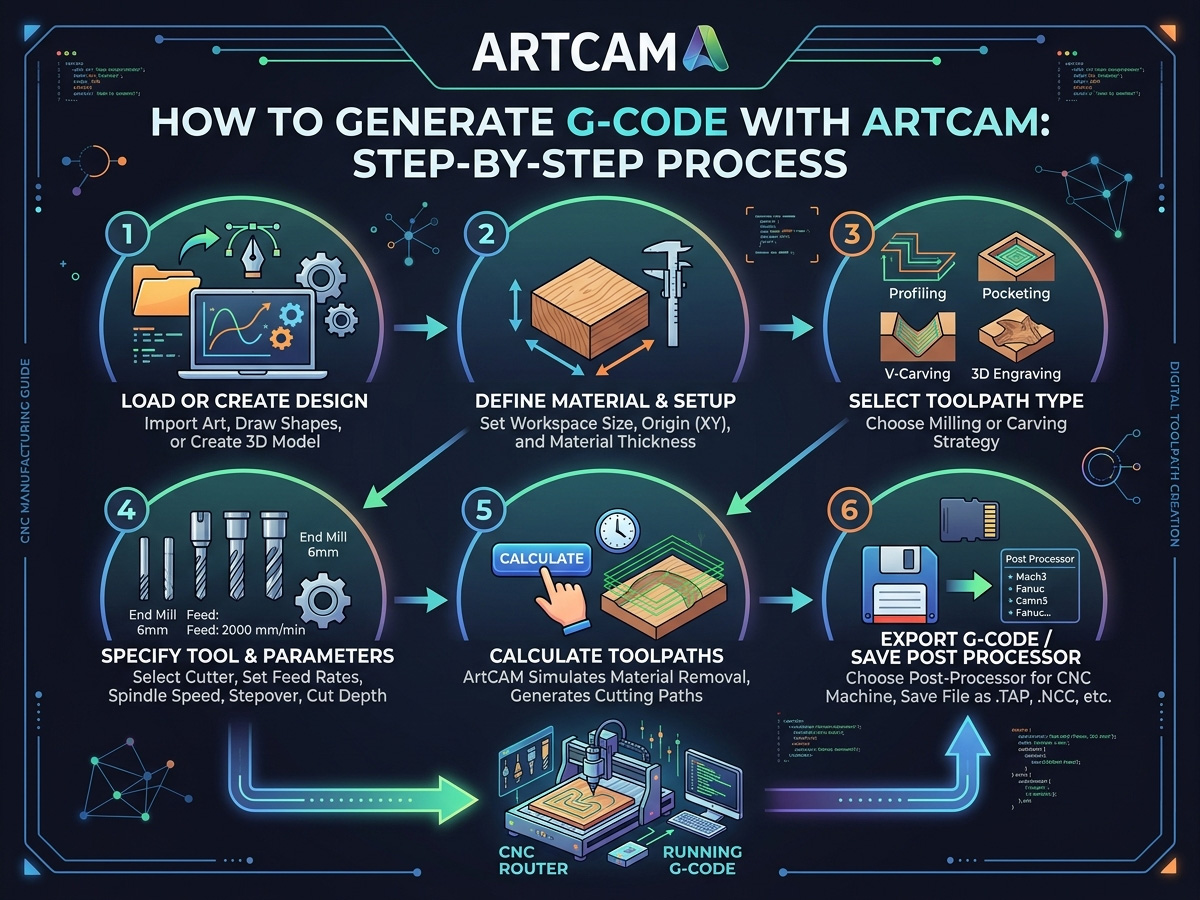
什么是 ArtCAM?
專(zhuān)門(mén) CAD/CAM軟件 ArtCAM 是一款用于數(shù)控機(jī)床設(shè)計(jì)和制造的軟件。它擁有獨(dú)特的精度極高的能力。 2D/3D 模型使其在各種行業(yè)中廣受歡迎,包括標(biāo)志制作、珠寶制作、木工等。借助 ArtCAM 的各種工具,用戶可以在程序中直接繪制草圖、塑造和處理設(shè)計(jì)。ArtCAM 的直觀界面使將藝術(shù)概念轉(zhuǎn)化為精確的機(jī)器指令變得非常簡(jiǎn)單,無(wú)論您正在創(chuàng)建的浮雕或雕刻的復(fù)雜程度如何。
該軟件強(qiáng)大的刀具路徑生成功能尤其受到用戶青睞,它簡(jiǎn)化了數(shù)控加工的設(shè)計(jì)準(zhǔn)備工作。用戶可以在同一平臺(tái)上選擇適合材料的理想刀具,調(diào)整切削深度,并自定義加工策略。對(duì)于希望使用數(shù)控機(jī)床實(shí)現(xiàn)數(shù)字設(shè)計(jì)的專(zhuān)業(yè)人士和愛(ài)好者而言,ArtCAM憑借其豐富的設(shè)計(jì)選項(xiàng)和強(qiáng)大的適應(yīng)性,成為首選。
什么是G代碼?
用于操作數(shù)控機(jī)床的編程語(yǔ)言稱(chēng)為G代碼,它指導(dǎo)機(jī)床的運(yùn)動(dòng)和動(dòng)作以執(zhí)行預(yù)定任務(wù)。可以將G代碼理解為一系列指令的集合,這些指令向機(jī)床指定了所有運(yùn)動(dòng)、速度和切削時(shí)間。G代碼的每一行都代表一個(gè)特定的動(dòng)作,例如更換刀具、移動(dòng)切削刀具或改變主軸轉(zhuǎn)速。
配置好設(shè)計(jì)和刀具路徑后,像 ArtCAM 這樣的 CAM(計(jì)算機(jī)輔助制造)軟件會(huì)生成 G 代碼文件。這些文件生成后會(huì)被送入數(shù)控機(jī)床的控制器,控制器讀取指令并執(zhí)行必要的切削。由于 G 代碼的質(zhì)量決定了加工項(xiàng)目的精度和效率,因此在執(zhí)行加工之前進(jìn)行精確的設(shè)置和模擬至關(guān)重要。
為什么使用 ArtCAM 生成 G 代碼?
ArtCAM憑借其強(qiáng)大的設(shè)計(jì)功能和易于使用的界面,是創(chuàng)建G代碼的絕佳選擇。以下是CNC用戶認(rèn)為它更勝一籌的一些原因。
? ArtCAM 具有直觀的布局,可以實(shí)現(xiàn)高精度和詳細(xì)的設(shè)計(jì) 2D/3D 設(shè)計(jì)。
? ArtCAM 自帶的加工技術(shù)使刀具路徑生成更加容易。
? 支持多種類(lèi)型的數(shù)控機(jī)床。
如何使用 ArtCAM 為數(shù)控機(jī)床生成 G 代碼
使用 ArtCAM 為您的數(shù)控機(jī)床創(chuàng)建 G 代碼是實(shí)現(xiàn)設(shè)計(jì)的關(guān)鍵步驟。您的數(shù)控機(jī)床使用 G 代碼(作為其語(yǔ)言)將您的數(shù)字圖紙解釋為精確的運(yùn)動(dòng)和動(dòng)作。憑借其強(qiáng)大的設(shè)計(jì)和刀具路徑開(kāi)發(fā)功能,ArtCAM 簡(jiǎn)化了此過(guò)程并使您更容易生成精確的 G 代碼。無(wú)論您的經(jīng)驗(yàn)水平如何,通過(guò)學(xué)習(xí)如何使用 ArtCAM 生成 G 代碼,您的數(shù)控項(xiàng)目的質(zhì)量和效率都可以大大提高。
設(shè)置您的 ArtCAM 項(xiàng)目
在開(kāi)始設(shè)計(jì)之前,正確設(shè)置項(xiàng)目非常重要。確保有完美的安排后再開(kāi)始項(xiàng)目。這是你開(kāi)始的方式,
? 啟動(dòng)您的計(jì)算機(jī)軟件。
? 從主菜單中選擇“新模型”,然后輸入項(xiàng)目的尺寸。這包括厚度、寬度和高度。
? 您所使用的材料類(lèi)型將決定您可以使用的切割設(shè)置。
? 指定數(shù)控機(jī)床開(kāi)始切割的位置,通常是左下角或中心位置。
創(chuàng)建或?qū)肽愕脑O(shè)計(jì)
現(xiàn)在是時(shí)候?qū)⒛脑O(shè)計(jì)導(dǎo)入ArtCAM了。您可以直接在軟件中創(chuàng)建新設(shè)計(jì),也可以從其他CAD工具導(dǎo)入設(shè)計(jì)。
在 ArtCAM 中創(chuàng)建新設(shè)計(jì)
? 使用矢量繪圖工具繪制文本或基本形狀。借助此工具包,可以創(chuàng)建封閉對(duì)象、曲線和直線,用于數(shù)控加工。3D 如果您需要更復(fù)雜的設(shè)計(jì),ArtCAM 提供建模工具。
? 您可以利用雕刻工具制作復(fù)雜的雕刻、浮雕和創(chuàng)建紋理。
導(dǎo)入設(shè)計(jì)
? ArtCAM 允許您導(dǎo)入 DXF、EPS 和 STL 如果您已經(jīng)使用其他程序(如 AutoCAD 或 Adob??e Illustrator)規(guī)劃了項(xiàng)目,則可以使用以下格式。
? 只需通過(guò)導(dǎo)航至“文件”>“導(dǎo)入”來(lái)選擇文件即可。設(shè)計(jì)完成后,下一步是設(shè)置刀具路徑。
設(shè)置刀具路徑
刀具路徑是指數(shù)控機(jī)床雕刻設(shè)計(jì)圖案所遵循的路線。ArtCAM 通過(guò)提供針對(duì)不同類(lèi)型切削的多種刀具路徑策略,簡(jiǎn)化了這一過(guò)程。
刀具路徑類(lèi)型
1. 2D 刀具路徑: 適用于簡(jiǎn)單的切割操作,如雕刻或輪廓切割。這些是平面設(shè)計(jì)的理想選擇。
2. 3D 刀具路徑: 用于涉及深度和曲率的更復(fù)雜的設(shè)計(jì),例如創(chuàng)建淺浮雕。
3. 鉆孔刀具路徑: 如果您的設(shè)計(jì)需要鉆孔,該刀具路徑將根據(jù)鉆頭的尺寸創(chuàng)建垂直孔。
刀具路徑設(shè)置過(guò)程
? 選擇要加工的區(qū)域:要選擇您希望機(jī)器切割的設(shè)計(jì)部分,請(qǐng)使用 ArtCAM 中的選擇工具。
? 選擇正確的工具:通過(guò)調(diào)整直徑和切削深度等參數(shù),ArtCAM 可讓您定義切削工具(例如立銑刀、球頭銑刀或 V 型鉆頭)。
? 定義加工參數(shù):指定切削深度、主軸轉(zhuǎn)速 (RPM) 和進(jìn)給率 (切削速度)。您要處理的材料和項(xiàng)目所需的精度水平將決定這些參數(shù)。
? 創(chuàng)建刀具路徑:參數(shù)準(zhǔn)確后創(chuàng)建刀具路徑。ArtCAM 將使用您的設(shè)計(jì)和機(jī)器配置計(jì)算路徑。
模擬刀具路徑
在生成最終 Gcode 之前,模擬刀具路徑以檢查數(shù)控機(jī)床如何執(zhí)行設(shè)計(jì)是一個(gè)好主意。借助 ArtCAM 的模擬功能,您可以看到切割預(yù)覽并在加工之前識(shí)別任何潛在問(wèn)題。
確保材料或機(jī)器的任何部分都不會(huì)與刀具發(fā)生碰撞。如果發(fā)現(xiàn)任何問(wèn)題,請(qǐng)返回刀具路徑設(shè)置并進(jìn)行必要的調(diào)整。由于模擬可以消除錯(cuò)誤,因此可以節(jié)省您的時(shí)間和資源。
生成 G 代碼
刀具路徑確定后,就可以生成G代碼文件了。這一步至關(guān)重要,因?yàn)閿?shù)控機(jī)床將使用G代碼來(lái)執(zhí)行切割操作。
生成 G 代碼的步驟
1. 選擇后處理器:ArtCAM 與許多品牌和類(lèi)型的數(shù)控機(jī)床兼容。選擇合適的后處理器,它可以將您的刀具路徑轉(zhuǎn)換為適用于您機(jī)床的 G 代碼。
2. 生成 G 代碼:選擇后處理器,然后單擊“生成 G 代碼”選項(xiàng)。文件將以“.nc”或“.tap”擴(kuò)展名保存,或者以您的數(shù)控機(jī)床可以讀取的格式保存。
3. 保存文件:當(dāng)您準(zhǔn)備將 G 代碼文件發(fā)送到數(shù)控機(jī)床時(shí),請(qǐng)將其保存在您方便訪問(wèn)的位置。
將 G 代碼傳輸?shù)綌?shù)控機(jī)床
現(xiàn)在您有了 G代碼 文件準(zhǔn)備好后,就可以將其加載到數(shù)控機(jī)床中了。根據(jù)機(jī)床的不同,加載方法有幾種。
? USB傳輸:許多數(shù)控機(jī)床可以通過(guò)U盤(pán)傳輸G代碼。要使用該文件,只需將其復(fù)制到U盤(pán)并插入計(jì)算機(jī)控制器即可。
? 直接連接:使用串行或 USB 連接,某些設(shè)備可實(shí)現(xiàn)計(jì)算機(jī)與數(shù)控之間的直接通信。
? 無(wú)線傳輸:如果您的數(shù)控機(jī)床支持無(wú)線連接,您可以通過(guò) Wi-Fi 直接從您的計(jì)算機(jī)發(fā)送 G 代碼文件。
一旦上傳了 G 代碼,您就可以開(kāi)始加工。
生成 G 代碼時(shí)應(yīng)避免的常見(jiàn)錯(cuò)誤
即使是經(jīng)驗(yàn)豐富的用戶在 G 代碼生成過(guò)程中也可能會(huì)犯錯(cuò)誤。您可能會(huì)犯的一些常見(jiàn)錯(cuò)誤包括:
1. 錯(cuò)誤的刀具路徑配置:每天兩次驗(yàn)證進(jìn)給速度、主軸速度和刀具尺寸。
2. 忽視模擬:盡管模擬看起來(lái)很耗時(shí),但它可以避免代價(jià)高昂的錯(cuò)誤。
3. 使用錯(cuò)誤的后處理器:確認(rèn)你使用的后處理器適合你擁有的特定數(shù)控機(jī)床。
在 ArtCAM 中優(yōu)化 G 代碼生成的技巧
要實(shí)現(xiàn)無(wú)縫且有效的數(shù)控加工,需要優(yōu)化 ArtCAM 中的 G 代碼生成。通過(guò)簡(jiǎn)化刀具路徑、修改進(jìn)給率和安排設(shè)計(jì)層,您可以節(jié)省時(shí)間并提高項(xiàng)目的正確性。這些小調(diào)整可幫助您充分利用機(jī)器和材料,同時(shí)提高性能。以下是最大化 ArtCAM 的 G 代碼生成的一些提示:
? 使用圖層進(jìn)行復(fù)雜設(shè)計(jì):使用圖層可以幫助您有效地管理和安排項(xiàng)目中的多條刀具路徑。
? 使用樣品材料進(jìn)行測(cè)試:在成品上執(zhí)行 G 代碼之前,先在樣品上測(cè)試該代碼,確保一切正常運(yùn)行。
? 優(yōu)化刀具路徑以實(shí)現(xiàn)更快的切割:ArtCAM 允許您調(diào)整刀具路徑以實(shí)現(xiàn)最大效率。
? 嘗試調(diào)整切割順序和進(jìn)給速度,以實(shí)現(xiàn)更快的生產(chǎn)速度,同時(shí)不犧牲質(zhì)量。
為您的項(xiàng)目選擇合適的 ArtCAM 刀具路徑策略
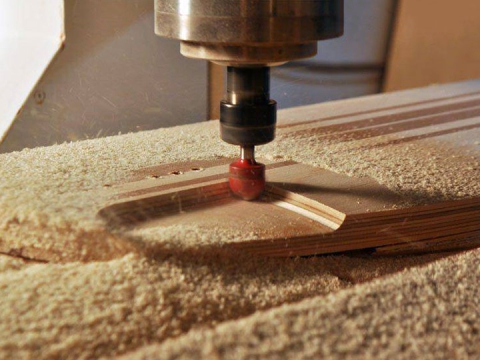
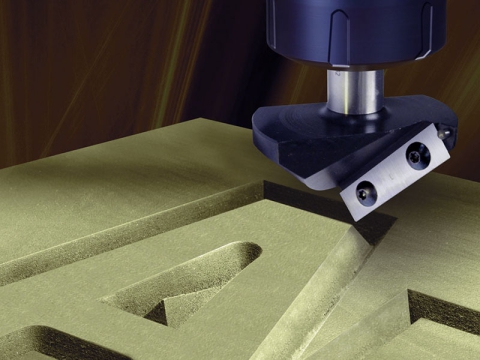
ArtCAM 提供多種刀具路徑策略,在生成 G 代碼之前選擇正確的策略將決定切削質(zhì)量和加工周期。輪廓刀具路徑沿二維矢量輪廓進(jìn)行切削,適用于標(biāo)牌文字、鑲嵌和零件輪廓加工。區(qū)域清除刀具路徑去除矢量邊界內(nèi)部或外部的材料,適用于型腔、凹槽和平底型腔加工。 3D 粗加工時(shí),粗加工刀具路徑使用平頭銑刀以較大的步距值清除大塊材料;精加工刀具路徑使用球頭銑刀以較小的步距沿著浮雕表面進(jìn)行加工,從而在裝飾板、托架和家具部件上產(chǎn)生光滑的細(xì)節(jié)。
刀具路徑與機(jī)床的匹配與刀具路徑與設(shè)計(jì)的匹配同樣重要。標(biāo)準(zhǔn)三軸 數(shù)控木雕刻機(jī) 能夠高效地處理輪廓切割、型腔加工和單面浮雕。復(fù)雜的雕塑和環(huán)繞式雕刻需要使用輸出 G 代碼時(shí)可用的旋轉(zhuǎn)刀具路徑。 3D 數(shù)控銑床 ArtCAM 具備第四軸功能。其刀具路徑模擬預(yù)覽功能可讓您在投入材料之前在屏幕上驗(yàn)證最終形狀,從而發(fā)現(xiàn)深度誤差、劃痕和遺漏區(qū)域,避免浪費(fèi)材料和機(jī)床時(shí)間。
為您的數(shù)控控制器選擇合適的后處理器
后處理器是 ArtCAM 內(nèi)部刀具路徑數(shù)據(jù)與數(shù)控控制器能夠識(shí)別的特定 G 代碼方言之間的轉(zhuǎn)換層。不同的控制器,例如 DSP、Mach3、GRBL、NCStudio 和新代,對(duì) G 代碼指令的解釋在圓弧格式、主軸代碼和 safe-h8 處理方面存在細(xì)微差別。使用錯(cuò)誤的后處理器會(huì)導(dǎo)致軸方向錯(cuò)誤、主軸啟動(dòng)順序錯(cuò)誤,或者意外的快速移動(dòng)導(dǎo)致刀具撞擊工件。
ArtCAM 自帶一個(gè)適用于常用控制器的后處理器庫(kù),大多數(shù)數(shù)控雕刻機(jī)制造商也會(huì)提供與其機(jī)器固件匹配的推薦后處理器文件。在保存第一個(gè) G 代碼文件之前,請(qǐng)確認(rèn)您的機(jī)器使用的控制器,并在 ArtCAM 的輸出設(shè)置中加載相應(yīng)的后處理器。進(jìn)行空轉(zhuǎn)測(cè)試(主軸關(guān)閉,刀具抬起),以驗(yàn)證軸運(yùn)動(dòng)、進(jìn)給速度和換刀順序是否正確。如需了解更多兼容的設(shè)計(jì)和制造軟件,請(qǐng)參閱…… CNC軟件資源庫(kù) 列出最常用的 CAD/CAM軟件包 以及它們支持的文件格式和控制器兼容性。
ArtCAM導(dǎo)出后常見(jiàn)G代碼錯(cuò)誤的故障排除
即使是設(shè)計(jì)合理的刀具路徑,如果導(dǎo)出的 G 代碼參數(shù)不匹配,也可能導(dǎo)致機(jī)床加工出現(xiàn)意外結(jié)果。最常見(jiàn)的問(wèn)題之一是單位不匹配:ArtCAM 可能以毫米為單位導(dǎo)出,而控制器預(yù)期使用英寸,這會(huì)導(dǎo)致機(jī)床實(shí)際切割尺寸遠(yuǎn)小于預(yù)期,甚至完全超出工件尺寸。務(wù)必檢查 G 代碼頭部是否指定了公制單位 G21 或英制單位 G20,并確認(rèn)控制器的默認(rèn)單位設(shè)置與之匹配。
進(jìn)給速度誤差是第二常見(jiàn)的問(wèn)題。如果導(dǎo)出的進(jìn)給速度超過(guò)機(jī)床的最大移動(dòng)速度,控制器會(huì)根據(jù)固件的不同,靜默地限制該值或發(fā)出警報(bào)。導(dǎo)出前,請(qǐng)務(wù)必將 ArtCAM 刀具路徑參數(shù)與機(jī)床的額定最大進(jìn)給速度和快速移動(dòng)速度進(jìn)行比對(duì)。安全高度 (Safe-h8) 和回退值也需要注意;回退平面設(shè)置過(guò)低可能會(huì)導(dǎo)致刀具在切削過(guò)程中拖過(guò)夾具或壓緊裝置。請(qǐng)參閱相關(guān)指南了解更多信息。 常見(jiàn)的數(shù)控雕刻機(jī)問(wèn)題及故障排除方案 涵蓋影響切割精度的其他機(jī)械和軟件問(wèn)題。一旦您的工作流程調(diào)整完畢,該庫(kù) 免費(fèi) 3D 數(shù)控雕刻機(jī)文件 提供可直接導(dǎo)入的設(shè)計(jì),以便在實(shí)際項(xiàng)目中測(cè)試您的 ArtCAM 到機(jī)床加工流程。
結(jié)語(yǔ)
使用 ArtCAM 為數(shù)控機(jī)床生成 G 代碼非常簡(jiǎn)單。您所要做的就是設(shè)置項(xiàng)目、設(shè)計(jì)、制作刀具路徑并導(dǎo)出 G 代碼文件。只要有一點(diǎn)經(jīng)驗(yàn),您就可以創(chuàng)建出色的可加工文件,以保證準(zhǔn)確和高效的輸出。永遠(yuǎn)不要忘記使用適當(dāng)?shù)暮筇幚砥鳌⒛M刀具路徑并正確將文件傳輸?shù)綌?shù)控機(jī)床。您的數(shù)字設(shè)計(jì)現(xiàn)在可以輕松變成現(xiàn)實(shí)。